8 Advance tips to Make Your Pc Perform Faster:Windows Optimization
 This is the Second post of latest series”Increase pc Optimization”.In previous post “How to Make Your Pc System Run Faster:Increase PC Performance” .I had discussed about some points which are basic but effective.As I already told you that The steps I am going to explain here are new and advanced(that means most of you are not aware of them).Every windows from Microsoft and their operating systems are being considered as the great operating system,in which they have recently added a new operating system Windows8.Usually pc performance and good optimization depends on the processor but Your pc or computer performance also depends much on these operating system.Hence it is more important to optimize your operating system which will boost your computer speed and processing.
There are many who still have their old PC. Installing Windows on them Even with latest hardware’s installed some users are still avaricious for more performance.Though we don’t make it lightning fast, we can optimize Windows to the maximum possible extent and enjoy the maximum performance .So for all the extra performance lovers, let me present you with this Ultimate Guide To you. These tips hardly take 2 or 3 minutes.
Pc Optimization Series
- Browse Privately In Google Chrome Without Using Any 3rd Party Software
- 5 Ways To Delete A Folder Which Shows “Folder/File cannot Be Deleted”,"Access Denied”
The overview of steps
- Getting rid of the Unnecessary Fonts
- Speed-up Boot Time
- Turn off Search Indexer
- Turn Off System Sounds
- Startup Streamline
- Using USB drive as External RAM
- Disable Unnecessary Visual Effects
- Disable Aero theme
1) Getting rid of the Unnecessary Fonts:
there is lot of unnecessary fonts unless you often print pages. By doing this, it helps the efficient utilization of system resources. You can remove these fonts by the following procedure.- Open Control panel. Then open Fonts Folder.
- Create a temporary folder in any of the drives.
- Move the unused fonts to the temporary folder.
- You can retrieve the fonts from that temporary folder as and when required. Deleting fonts is not recommended.

2) Speed-up Boot Time:
This step is already has explained in previous post but I think there was more to improve in this for better understanding. You can increase the speed of the booting procedure by following these steps:- Open Run command
- Type “MSCONFIG” and press enter.
- Open the boot tab in MSCONFIG window
- Locate the box (on the right side) named “Time out”. Usually, it is set to 30.
- If you are using only one operating system then you can set the value as 0. But if you are using more than one, then set to 3.
- Check “No GUI Boot” option.
- Click “Advance Options” menu.
- Enter the number of processors used by your computer in the “Number of processor” column. Generally, it will be two.
- Approve the settings by clicking OK
- Restart the computer
Your computer will boot faster than earlier.
3) Turn off Search Indexer:
Search Indexer consumes more RAM memory and slows your system Follow the steps to disable Search indexer.- Open Run Command
- Then type “services.msc” and run it
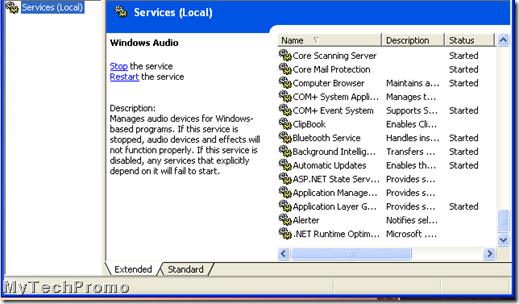
- Go to “Windows Search” and right click on it.
- Choose the “Disable” option
- Restart your computer.
4) Turn Off System Sounds:
The System sounds consume precious memory. If you are not interested in having system sound, you can disable those with the following steps- Open Run Command
- Then type “mmsys.cpl” and run it

- Open “Sounds” tab
- Select “No Sound” from the menu
- Restart your computer
5) Startup Streamline:
Some of the apps that you are installed in your system are automatically added in the “start up” without your knowledge. The programs that are not used frequently can be prevented from loading while booting. They unnecessarily increase the boot time. You can disable them with these following steps:- Open Run command
- Type “msconfig” and run it

- Open “startup” tab
- Then just uncheck the unnecessary programs
- Click Apply and restart your system
6) Using USB drive as External RAM:
Windows 7 lets you to use any USB drive as an additional RAM. This will significantly increase the performance of the computer. The steps are as follows:- Plug the USB drive to your system
- Go to My Computer
- Right Click on the USB drive and go to properties
- Open “Ready boost” tab and select “Use this device”

- Configure the memory space of your USB drive that you want to allocate as RAM
7) Disable Unnecessary Visual Effects:
You can speed up the system by disabling unnecessary visual effects that consumes precious memory. The steps are- Right click on the My Computer and go to properties.
- Click “Advance System Settings” present on the left panel.
- Go to “Visual Effects tab” and check “Custom” option

- Then uncheck unnecessary visual effects
- Close all windows
- Restart the computer
8) Disable Aero theme:
Windows Aero Theme is pretty attractive and eye candy. But it consumes lot of memory and uses the graphics card to its maximum. If you don’t this eye candy theme, then disable it. In turn, it offers better performance. The steps to disable are:- Right click on the desktop
- Choose “Personalize” option.
- Select any of the standard themes available. We recommend “Windows 7 Basic” theme.
From Author:
So its all about pc performance optimization with some advanced steps.These all steps mentioned above are as usual written keeping in mind of window7 but all steps are mostly similar for all operating system or windows.Hope you enjoyed the post and don’t forget to implement it on your computer.If you feel any difficulty while implementing these steps on your pc,don’ hesitate to leave your comment.We will share more tutorial of this kind.So don’t forget to subscribe us.Till then stay cool and God bless.SHARE THIS POST