Best 5 Google Chrome Tricks You Should Know
 Google Chrome is the most popular browser with a large number of user which are increasing day by day.It’s first stable version was released in December 2008 and it has releases number of versions. Now Google chrome support features like inbuilt PDF reader,translational tool,large number of extensions,developer tools, support for themes etc.Do you use Google Chrome to surf the internet?I am sure you use,why not it is a best and fastest web browser in my opinion.
In this tutorial I am going to explain the tricks which a normal chrome user and internet surfer doesn't know.These tips will surely increase your chrome experience and you will come to know why people called Google chrome the number one browser.
You may also Like To read:
Here is the list of Tricks I am going To explain:
- Create An App Shortcut For A website.
- Easily Save your Downloaded File in a Folder
- Get more Information about any Website
- Open Multiple Start-up Pages
- Autofill a Website Address
1. Create an App Shortcut for a Website:-
This trick helps you to have fast access to any website.
- Open any website into your chrome browser for which you want to Create App. Shortcut.
- Click on the Wrench Icon in browser (below the close button at top right corner).
- Then go to Tool–> Create Application Shortcut.
-
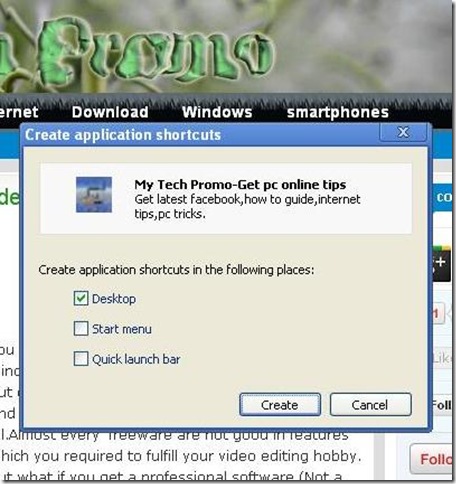
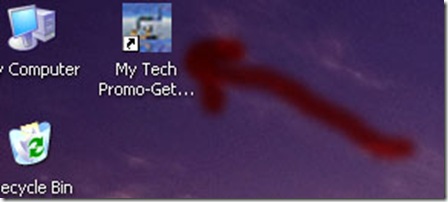
- Now just click on the Create button and you can see a shortcut of your favorite website on your desktop.


2. Easily Save your Downloaded File in a Folder:-
After downloading any file from the internet, Chrome saves it on its default location.You can also save this downloaded file anywhere in your PC .
- To copy the downloaded file simply Drag and Drop it from the download section of the browser (Ctrl+j) to any folder in your PC.
- In the below screenshot you can see a downloaded file being dragged to c drive .

3. Autofill a Website Address:-
Autofill Fill option tries to complete your website address automatically as you type the URL.In case Autofill feature is not working in your browser you can enable it by following these steps
- Click on the Wrench Icon of your Chrome browser ( below the close button at top right corner).
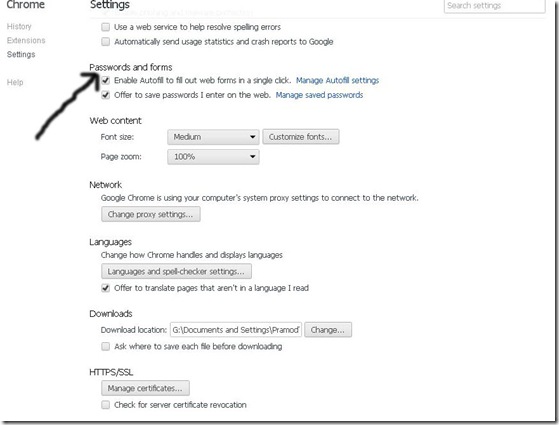
- Select the setting option from left sided window and do check mark on the check box of the Autofill option in the right sided window Pane.

- Now open new tab and type any address you want Chrome will try to autofill the address.E.g If you type fa in the address bar, facebook.com will become highlighted automatically.
4. Open Multiple Start-up Pages:-
When you open your web browser then it opens your Default Homepage. By using this trick you can select more than one start-up page in Google Chrome:- - Open your chrome browser and click on the Wrench Icon.
- Now select setting button and click on the in the newly opened window.

- Click on the Add button and in the pop up window add the URL of the page that you want to open at startup.

- Restart (close/open) your browser and it will open all your pages that you have added.
5. Get more Information about any Website:-
If you like any website and want know more about it i.e about its scripts,resources etc. All you have to do is:-
- Visit the website about which you want to gather information and right click on it.
- Select Inspect Element option.
- That’s it. Now a window will open at the bottom of your webpage. Select various options that you want to see.

This trick is very helpful for web developers.
Read:
So apply these changes in your Google Chrome browser and if you are facing any type of difficulty I am here for you, feel free to ask.
SHARE THIS POST